Email automation is now built into involve.me. You can create multi-step email workflows that run automatically when someone completes your funnel, makes a payment, or is added as a contact.
For high-ticket businesses, the follow-up is where the deal is won. A financial advisor, an insurance broker, a real estate agent, a solar installer: one qualified lead is worth hundreds or thousands of dollars. Your quiz funnel captures and qualifies that lead. Email automation carries it from a finished quiz to a booked call.
Both live in the same place, so answers, scores, and outcomes pass straight from the funnel into the email. You don't connect a separate email platform or export a list. Most quiz builders stop at the capture and leave the follow-up to a tool you wire up yourself.

What Email Automation Does
An email automation is a workflow that runs on its own once a trigger fires. You build it on a drag-and-drop canvas: drop in emails, wait steps, and conditions, then connect them into a sequence.
A few things you can build right away:
Welcome emails that go out the second someone finishes your quiz or assessment.
Follow-up messages timed to land days later with a next step or an offer.
Drip campaigns that nurture a lead over weeks.
Branched journeys that change based on answers, scores, outcomes, or contact data.
Workflows are available on the Start, Grow, and Scale plans.
Email Automation Vs. Follow-up Emails
involve.me gives you two ways to email people after a submission, and they run side by side without conflict.
Follow-up emails are the simple option: one immediate email (or one per outcome), set up in Funnel Settings under Email Notifications. Good for a quiz result or a payment confirmation.
Email automation is the bigger toolkit. You build multi-step sequences on a canvas, add delays and branching, and trigger actions that aren't emails at all. Reach for it when the follow-up is a journey instead of a single message.
So the rule of thumb: one immediate email, use follow-up emails. Multiple steps, delays, or logic, use email automation.
How a Workflow Starts: Triggers
Every workflow begins with a trigger, the event that enrolls a participant. You pick the trigger and the funnel it's tied to. There are three:
Completed submission. Starts when a participant finishes the funnel. Partial submissions don't count. This is the one you'll use most.
Payment completed. Starts after a successful payment. Good for post-purchase sequences.
Contact created. Starts the moment a contact is added or imported.
That third trigger is new, and it's a big one for high-ticket sales. Contact created enrolls people without any funnel submission at all. Import a list and they're in the workflow right away. You can even email a contact who has never touched a quiz and invite them to take one.
You can narrow which new contacts come in, too, by import date or by a custom property set at import, so the right people get the right follow-up. One catch: this trigger has no funnel data behind it, so answers and scores aren't available.
Every time a trigger condition is met, a new workflow run starts for that person.
The Actions You Can Add

Once the trigger is set, click the + button between steps to add actions. There are six:
Send email. Send a personalized email. Set the subject, write the body in a block editor (type "/" to drop in headings, images, buttons, tables, and emoji), and add attachments.
Invite to funnel. Send an invitation to complete another funnel, like a feedback survey after a consultation.
Wait time. Pause before the next step (the three wait options are below).
Conditional logic. Split the workflow into paths based on participant data.
A/B test. Randomly split participants between two or more paths to test content or timing.
Exit. End the workflow at a specific point. Handy after a branch, when someone no longer fits your criteria.
The wait step has three modes:
Wait for a set duration, a number of hours or days. Use it to space out a drip.
Wait until a specific date and time, based on your account timezone. Good for a launch.
Wait until another funnel is completed, with a timeout in days. If they don't finish in time, the workflow stops.
How to Build Your First Workflow
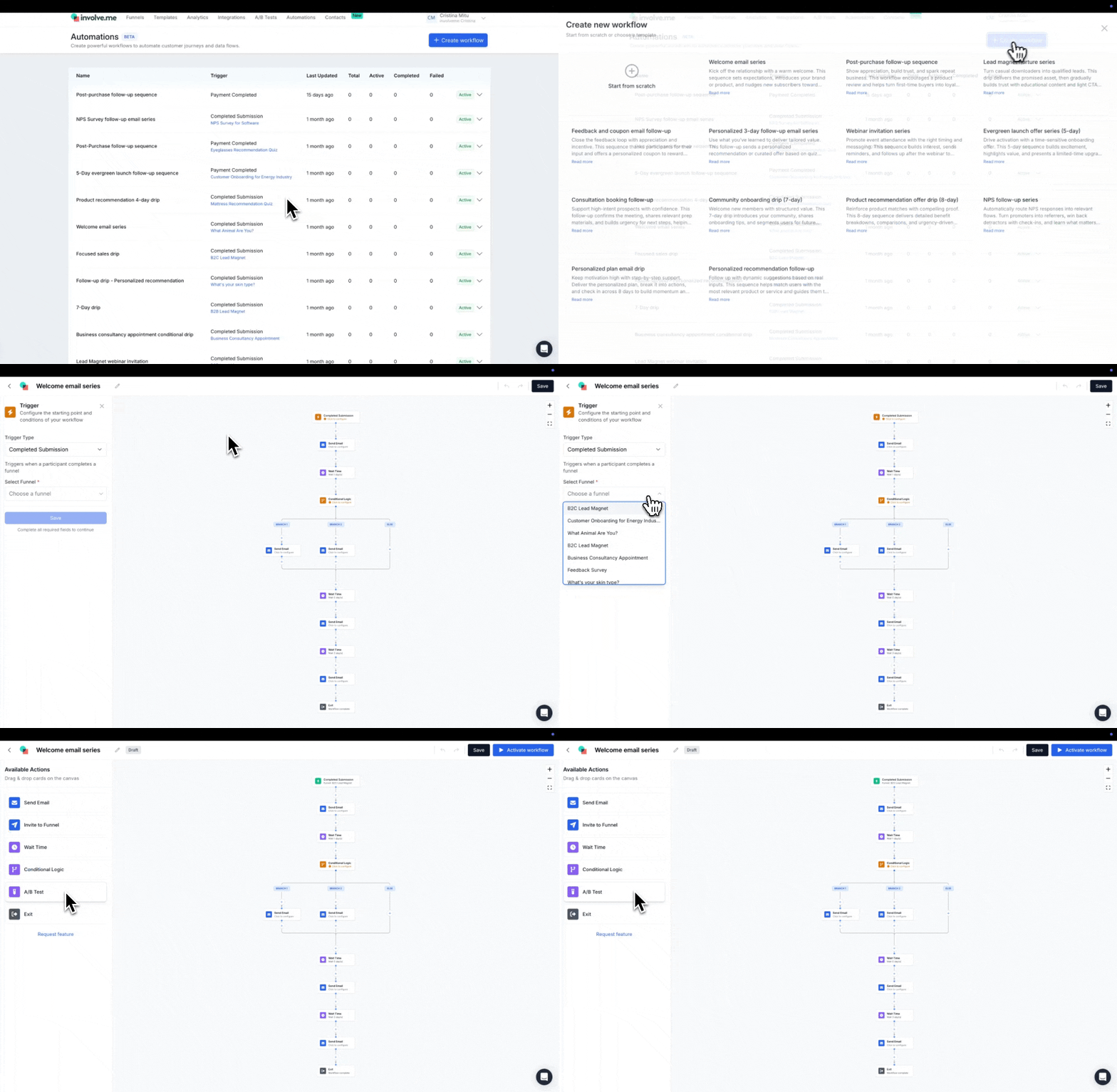
In the main navigation, click Email Automation.
Click + Create workflow in the top right.
Choose a trigger (completed submission, payment completed, or contact created) and select the funnel if it applies.
Click the + button to add actions and build out the canvas.
Configure each action: write your email content, set wait durations, define conditions.
Save and activate the workflow.
That's the whole loop. Start with two or three steps, then build out from there.
Branch the Journey with Conditional Logic
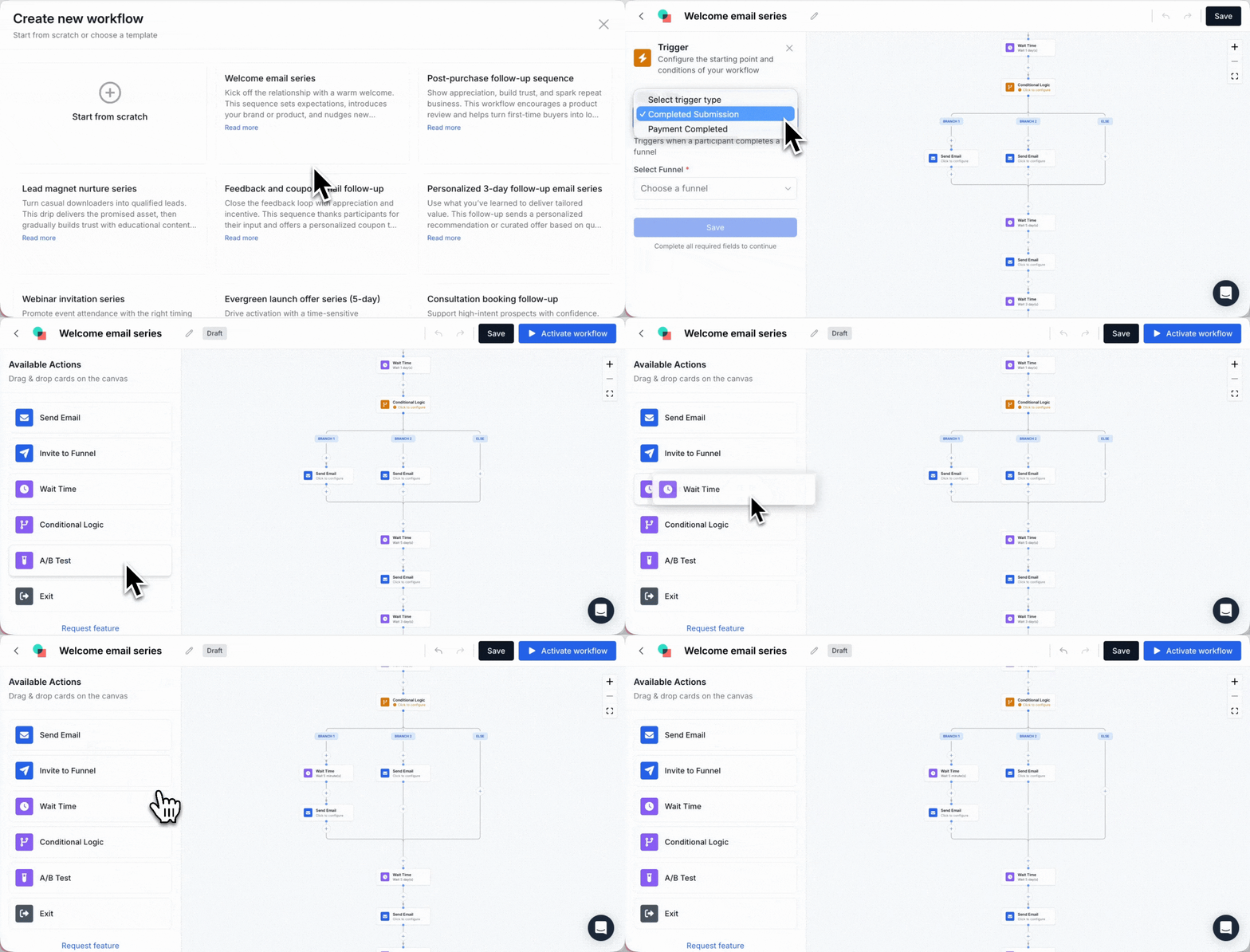
Conditional logic is where the follow-up gets personal. The action splits your workflow into different paths based on:
Contact information
Answers, scores, and outcomes
Email engagement, such as opened or clicked
Trigger data and workflow variables
For a financial advisor, that might be one path for a "ready to invest" outcome and another for "still researching," each with its own cadence. Pair conditions with the Exit action to drop people out of a path once they no longer match.
A tip from the setup: branch on outcome names, scores, or funnel names, not loose free-text values. Conditions are case-sensitive, so a clean field value saves you a debugging session later.
Personalize Every Email with Variables

Inside any Send Email action, you can pull submission data straight into the subject line and the body. Type "@" or click the + icon to open the variable picker. Variables include contact form fields, question answers, outcome name, funnel name, hidden fields, and any custom fields from your funnel.
The variable picker recently got cleaner. You now see only the variables relevant to that specific email, pulled from the records tied to the run, like the contact and the funnel. Less scrolling, and the right merge field is easier to find.
The recipient is always the contact collected in the funnel, so the personalization lands on the right person every time.
Email Settings: Domain, Watermark, Tracking

A few settings worth knowing before you hit activate:
Sender domain. Emails send from no-reply@involveme.com by default. Connect your own SMTP sender to send from your own domain, which also improves deliverability.
Watermark. The involve.me footer can be removed on Grow and up, under Settings → Email Options → "Remove email watermark."
Opt-out link. The unsubscribe link can't be removed on any plan. Once someone opts out, they stop getting emails from all your workflows.
Images. Set width to 25%, 50%, 75%, 100%, or a custom pixel value, and make any image clickable with a URL.
Attachments. Use the paperclip icon. PDFs and other files show up as a download link in the email.
Tracking. Workflow emails track opens and clicks automatically.
Preview. Click "Send Preview Email" to check the layout. Variables don't substitute in preview, so run a real test submission to see the finished email.
Keep an Eye on Workflow Performance
The Email Automation dashboard lists every workflow and its status, with Draft, Active, Completed, and Failed counts. Open and click rates sit right on each Send Email node, so you can read engagement at a glance.
Workflow emails also show up on the Contact Timeline, next to follow-up emails and other activity. You can see exactly when an email was sent, opened, or clicked.
To dig into a single workflow, open it and click View Executions. Each run shows one of three statuses:
Completed. Every step ran.
Active. In progress, waiting at a wait step or condition.
Failed. Something needs attention. Open the error details to fix your setup.
Workflow Examples for High-ticket Sales
Some starting points built for longer, higher-value sales cycles:
Assessment result drip (financial advisor)
Completed submission → send the result email with their score → wait 1 day → conditional logic by outcome → send a personalized follow-up for each segment.
Post-purchase onboarding (any high-ticket service)
Payment completed → send a confirmation and prep email → wait 3 days → send a review or referral request.
Lead magnet welcome series (insurance, mortgage)
Completed submission → send the welcome email → wait 2 days → send a tips email → wait 5 days → send an offer to book a call.
Educational vs. promotional A/B test
Completed submission → wait 1 day → A/B test → Path A promotional, Path B educational → compare which one converts.
Cross-funnel feedback loop
Completed submission → send a thank-you → wait 7 days → invite to a second funnel, like a feedback survey or a deeper assessment.
Best Practices
Start simple. One or two steps before you build a complex flow.
Use clear conditions. Branch on outcome names, scores, or funnel names, not free text.
Test with real submissions. Don't trust preview alone. Complete a test submission and check View Executions.
Respect opt-outs. Once someone unsubscribes, they're out of every workflow.
Space your emails. Use wait steps so people get room between messages.
One more thing on deliverability: accounts with high bounce or complaint rates can have email sending automatically limited or suspended. Keep your lists clean and remove invalid addresses.
FAQ
-
Start, Grow, and Scale. It isn't on the Free plan.
-
Yes. Both can be active at once and they don't conflict.
-
No. The Contact created trigger enrolls contacts the moment they're added or imported, even if they've never taken a quiz.
-
Yes. Connect your own SMTP sender to send from your domain and improve deliverability. Otherwise emails go out from no-reply@involveme.com.
-
On Grow and higher, yes, under Settings → Email Options. The unsubscribe link stays on every plan.
-
Workflow emails track opens and clicks automatically. Rates show on each email node and on the Contact Timeline.
-
The workflow pauses and shows a warning state. Edit it to pick a different funnel as the trigger, or delete it.