Add involve.me
In Claude, go to Customize > Connectors. In ChatGPT, go to Plugins. Search for involve.me and add it.
In Claude, go to Customize > Connectors. In ChatGPT, go to Plugins. Search for involve.me and add it.
Set up quote calculators, assessments and intake forms, publish them and see how they convert, right from the chat. Every lead flows into your involve.me CRM and email workflows.
🔒 SOC 2 Type II · 🇪🇺 GDPR compliant


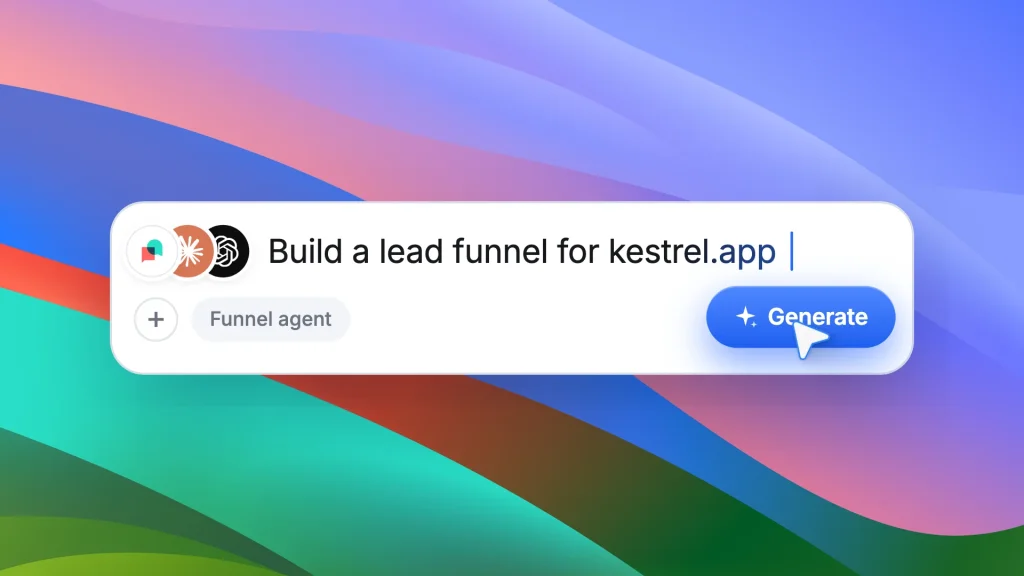
What Claude and ChatGPT do for you
Ask in plain language. Claude or ChatGPT calls involve.me for you and replies with links, numbers and next steps.
Start blank, describe what you need, pick a ready-made template or copy one you already run. Nothing goes live by accident.
“Set up a solar quote calculator that qualifies homeowners.”
Get a link that opens the draft in the involve.me editor. Fine-tune the details with the AI Agent or by drag and drop.
“Open my latest draft in the editor so I can finish it.”
Publish, close, reopen or archive with a single message. The assistant asks for your OK before anything goes live.
“Publish the client intake form for my coaching program.”
Get visits, starts, submissions, conversion and completion rates for one calculator or form, or for your whole organization.
“Which quote calculator converted best in the last 30 days?”
Rename, move between workspaces and change settings. Delete anything you no longer need, but only after you confirm.
“Move my insurance calculators into the Insurance workspace.”
Create organizations and workspaces, invite colleagues and change who has access. Invitations go out by email.
“Create a spring campaign workspace and invite my colleague.”
From the first answer to the follow-up
involve.me is the lead capture, CRM and email workflow automation platform. Everything you set up from the chat feeds the same CRM and email workflows as the rest of your account.
Quote calculators, assessments, product finders and intake forms ask the questions that qualify each lead.
Every lead lands in the free CRM with its answers, history and pipeline stage. Nothing to export or import.
Set up email workflows that follow up once. Each contact’s answers decide which email they get next.
In Claude, go to Customize > Connectors. In ChatGPT, go to Plugins. Search for involve.me and add it.
Sign in with your involve.me account. On Claude Team or Enterprise, an owner adds it first.
Open a new chat and ask for what you need. In ChatGPT, type @ and pick involve.me first.
You stay in control
The connection has the same access as your involve.me account. Your organization and workspace roles still apply.
You sign in at app.involve.me. Claude and ChatGPT never see your password.
Everything new starts as a draft. The assistant asks before it publishes, deletes, changes access or sends an invitation.
The connector does not read individual responses or contacts. The assistant only receives what a tool returns for your request, such as settings, templates and analytics.
Remove the connector in Claude or ChatGPT whenever you want. Access tokens expire after one year.


involve.me is the lead capture, CRM and email workflow automation platform. MCP (Model Context Protocol) is an open standard that lets AI assistants work inside other apps. After you sign in, the involve.me MCP server at https://app.involve.me/mcp lets Claude and ChatGPT set up, publish, organize and report on your quote calculators, assessments, product finders and intake forms.
Claude and ChatGPT. Add involve.me from the connector directory in Claude or from Plugins in ChatGPT, then sign in with your involve.me account.
Add it manually with the server URL https://app.involve.me/mcp. In Claude, add a custom connector (+ Add > Add custom connector). In ChatGPT, add a custom MCP server (+ > Add custom MCP server) and choose OAuth. Custom MCP servers need a ChatGPT plan and workspace that allow them. On Claude Team and Enterprise plans, an owner adds the connector first in Organization settings > Connectors. The step-by-step setup guide covers every option.
An involve.me account with at least one workspace. The limits and features of your involve.me plan still apply.
No. The connector does not read individual responses or contacts. The assistant receives only what a tool returns for your request, such as account and workspace details, templates and analytics. involve.me receives only the tool requests, not your full conversation, and Anthropic and OpenAI are not involve.me sub-processors for this connection.
The same way as every other lead. Each quote calculator, assessment, product finder or intake form you set up from the chat saves its leads in the involve.me CRM with their answers, history and pipeline stage, and your email workflows follow up from there. To add a workflow, ask the assistant for an editor link and set up the automation workflow there. Email workflows require a paid plan.
Remove involve.me in the connector settings of Claude or ChatGPT. Otherwise, access tokens expire after one year. To end all connections from the involve.me side, contact support@involve.me.